Showing posts with label storage. Show all posts

Saturday, August 20, 2022

That Didn't Last Long

My Linux/Mint Fileserver has already died three times in the past few weeks, The last time terminally, well I'd already swapped out two hard discs, which both crashed, didn't fancy wasting a third. So the much-altered old HP, aka Obsidan, has been consigned to the hard waste collection. 

Graveyard of Hardware killed by Window10 Updates

Ok back to the Stora, but that's a hard luck story as well. It works but none of my current PCs, and other devices can run the software (incomnpatible drivers stop installation) or even access it via a browser, because Adobe flash is required, which even Adobe no longer support and have removed it from downloads. I had to use my Linux netbook to reconnect (it had old version of the stora software) and "recover" the data from the stora onto already overloaded external USB drives.

Rather than panic I'm going to limp along with a monthly backup based on two copies of data but an old fashion SON - FATHER - GRANDFATHER set of Archives of keepers (files & photos I believe are worth archiving. This involves serious CULLING.

Friday, July 15, 2022

Bye, Bye... ... Stora

My little Netgear Stora, has been serving me well for nearly two decades. Primarily for most of its life it was connected to my LAN as a NAS, backing up my work computers and laptops but mirroring my key working directory whenever those computers were connected to my LAN. It worked so well I only had to use it to recover files on two occasions (both either hard disk or computer update crash). Ok last year after a lot of trouble with windows updates on my studio computer and little portable spectra refused to connect to the Stora at start up. It became tedious to work out if things were running ok and I turned the Stora off and have experimented with file & folder synchronization software (still not sure whether automatic or manual synch suit me better, but it does in theory get me close to mirroring my working files.

During the Stora's life the disk space was expanded from a 250GB single drive up to two 1TB disks, mirrored internally. In the early days it also gave family members their own shared space (discontented because it was seldom used). Then was my photo backup area until I started taking RAW format photos and movies and I soon overflowed space available.

I'm actually choosing to go back to having a traditional files server, (locked away in my old comms room). I have a couple of candidate computers that windows 10 updates have killed, well as far as Microsoft is concerned. I want it to be on 24/7 but secure. I also want this computer to have a DVD reader, perhaps even tape or Zip drive (to allow different media backups and/or reading old technologies). Finally, the ability to have two or more external drives connected (ie be able to copy whole archive disks setup). The downside is this will take up a lot more space than the little black box

Despite having used Ubuntu for some time on my little air gapped archive computer, which I have only been using roughly at six-month intervals and thus I hadn't time to become friends with Ubuntu. I've moved to using Linux Mint (it seems a lot cleaner and simpler for the stuff I want ie. little or no learning curve).

So I'm probably going backwards in technology but I trust I will be keeping things simple and reliable in the old fashion dependable sense.

Saturday, December 25, 2021

"CULL"ing the four letter world that photographers don't want to speak

I'm getting close to filling my 5TB disk on which I store my mastercopy of my photo library. There are almost half a millions files, a lot are jpeg & RAW pairs and there are movies as well. This actually only covers my 2010 to 2021, The 1999 to 2009 is on a differeent 1,5TB disk, Then there are 6 2TB off-site backup copies in 2 sets of 3 external usb harddrives, that I rotate every 2 months. Its becoming a bit of a production. Also i'm now faced with the isses to determine what is the most sensible way to get extra space.

1. Probably the most likley, is I'll take two of the external disks from my second offsite disks and add a third local photo library disks (I do have one USB port left) and make just one offsite set of 4 2TB disks. The surplus 2TB can become a rotating backup of the last 2 or 3 months. OK this will give me "some" headroom for at least the first part of next year.

2. Sit down and do some serious "CULLing" of things I am never likely to reconsider. This is that really scary thing a lot of photographers or even frantic smartphone snappers, will have to face at some time. 

Why has this come about because I have and use photo mechanic and (usually) spend a bit of time when I "ingest" (load the photos from the camera card onto the computer) my photos where I in theory on load the "keepers"? The out of focus, poor composition, unfortunate expression and straight bad images always get deleted straight away.

The problem is I have come to like and use techniques that have multipled the photos I take. Particularly with the fun features on my little olympus cameras (HDR & Focus bracketting, Panoramic stitching, Burst mode and PRO capture). Also the new favoutite and automated intervalometer for stop motion. Ok I blame them, but perhaps I have become a little less dilligent and skip through these sets as I import them, not being strict enough on what gets deleted.

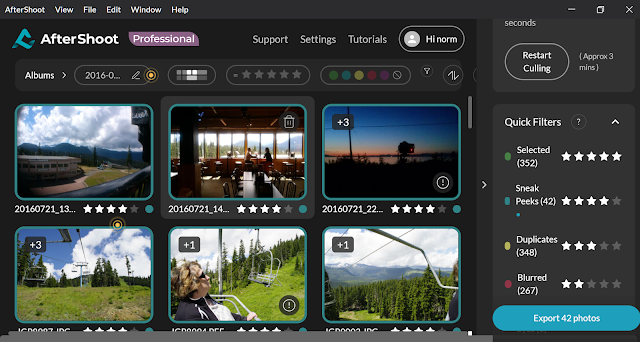
OK could I find and use modern software (specifically AI based system) to help me re-tackle the horrible task of reviewing and further deleting my photos. Seems it could even be an economically attractive option as well if I could get ride of perhaps 40% of my files, that could translate into 3-4 years before I have to outlay on extra disk capacity. Not sure what say two 4-5TB external harddrive (or the equivalent cloud storage) might cost but lets estimate around $150 each or $300 now. If I could find something for $100 that looks economiclly attractive.

What started this was an "offer" for AfterShot at $9.99 ( and thats probably USD$) but in my mind that seemed perfectfor my budget and I download the "free trial". It did a few good things, like  sneak preview grouping that used AI to find those images most like the ones shared on instagram and like services and was very strict with focus, Howeer a lot of its features like eyeclosed andface detect stuff didn't help me a lot also I was getting almost as many possible duplicates as I had photos (ie jpeg & raw pairs were reporting as two duplicates) and in most cases it was flagging the jpeg as the file to keep. Then I realised that the $9.99 was just per month and the discount was jut for a year if you paid up front after that it was $14.99 per month. Buying the extra disk now would be a much better option. I can see a wedding or group photographer is likley to save a lot of time. However what I am looking for is a cheap space creator. 


I do own another programs called  Corel AfterShotPro, which is a light weight RAW Editor I still use it occasionally mainly on my little HP Spectre when away from home. So one aftershot is probably enough. It does allow me to label/keyword, rank, colour code, and flag as Pick or reject but manually not via and automatic AI assisted approach.


Wednesday, May 19, 2021

Not IF but WHEN

Aren't bad things supposed to come in threes? I'm just experiencing fours, in terms of storage.

Digital Storage Media has a Finite Life


First, over a couple of weeks I saw warning from my android phone about occasional difficulty writing to the micro SD card, and then last week a warning to back it up followed by a note that it was unmounted. Fortunately when I took the card out of the phone I could read all its contents BUT I could not write to the card or even reformat it. Ok new card required (they are not all that expensive) and I had been doing monthly updates to my photo library. So nothing lost, at worst it might have been a few recent photos.

SO HAVE YOU BACKED UP THOSE PHOTOS ON YOUR PHONE RECENTLY? NO?

DO IT NOW.

I'm not going to go into detail but there are dozens of ways to get your photos off your phone, into the cloud and/or onto a computer Backup or Archive. Just expect your phone to be stolen, disappear, fall in the water or otherwise stop. If you have anything of personal value on it don't hesitate backup now!

Second was a strange corruption of a file on the memory card in my camera. At first I suspected the little USB card reader (which every now and the refuses to register on the device reading it). However swapping cards showed the problems was just a specific file on one SD card. Or the problem could be in the camera (hope not). Again the bigger faster SD cards I now use are more expensive but replacing it was an obvious tactic. Don't just leave your big SD cards to fill up. You can fit fair number of photos on 64GB and/or 128GB cards but then you loose a lot of photos if something goes wrong.

INGEST THOSE PHOTOS FOR YOUR SD CARD ONTO YOUR COMPUTER OR CLOUD REGULARLY!

DO IT NOW.

Third, I pulled out my backup portable hard drives (I have two set of 1TB & 2TB disks that I alternate one set in my office and one set offsite) in preparation for the monthly update and rotation. Unfortunately the one that was due to take the months incremental files was completed dead, No even a glimmer of life or flicker of the power on light. Again nothing lost, I still had the Master copy on my computer and the off site copy. However now replacement of the hard disk is starting to get expensive.

ARE YOU FOLLOWING THE 3-2-1 BACKUP STRATEGY. DO YOU HAVE AN OFF-SITE BACKUP?

DO IT NOW

The final insult came in the form of a BIOS message as my ailing studio computer attempts to start up. The cost of and capacity of traditional spinning platter magnetic hard disks have improved a lot, prices for the same capacity are significantly lower and the capacity has increased. However now there is the added complication and difficulty of opening up the computer finding the right replacement and the time to restore all the data, programs and get things back to normal. The cost of paying someone else to do this will be frightening.

RESTORING A COMPUTER THAT HAS CRASHED CAN BE A LENGTHY AND TEDIOUS PROCESS. IS YOUR DATA ROUTINELY BACKED UP? DO YOU HAVE A RECOVERY BACKUP?

MAKE THAT RECOVERY BACKUP AND LEARN HOW TO USE IT

Take it from me, these things will happened. 


Friday, November 02, 2018

The Sting in the Tail for Free Flickr Accounts

Part of the Banner Meesage on flickr todayDespite the rhetoric from Don MacAskill and others when SmugMug bought Flickr from Oath, today they announce a couple of big changes. Suggesting “This newly-independent community can shape the future of Photography itself”, whatever that means. The cost  of the Pro Account remains the same USD$50, with the same basic features (Ad-free,Unlimited Storage & More Detailed Stats). Its actually it’s still comparable with Smug Mug’s Basic account USD$3.99 (~USD48 annually). There are a couple more things offered like a 50% discount on a smug mug Portfolio, and promise of increased resolution and expanded Colour space, and 10min video rather than 5mins The various and proposed offerings for Pro (paid) membership do offer various advantages compared with the free account but not enough to excite me. At the moment I’m not likely to commit to an ongoing fee for the service, as I’m retired, I have to carefully mange my cashflows and I’m not wishing to use flickr as cloud backup/storage.

imageThe sting in the tail is the proposed changes for the free accounts, and I am a long time free account members. From February next year free accounts (currently unlimited number up to 1TB disk space, but you get ads) will be limited to 1,000 photos. 1000 photos at even one a day is over 3 years worth of posts.  C’est La vie.

I lived with Yahoos limit of 200 photos for free accounts for several years. That was you could only see the last 200 of your photos, However if you posted your photos to groups or had “official” links your photo could still be displayed (in other words the photo still existed on the platform). From what I understand the new limit will be enacted differently. Once you reach the 1000 limit you will be blocked from uploading. Also, and more significantly, if you have more than 1000 images stored Flickr will deleted the excess starting with the oldest! They will be gone forever from flickr. I expect this to be very unpopular, and lead to some ill informed rants. So get ready for the social media backlash! Not sure if deleting old photo once I reach the limit will free up space to  let me add new ones (I can’t currently find any specific reference to this).

I’m hopeful I will be able to remain using Flickr as a place to show my recent photos, but with a bit of extra work on my behalf (ie deleting other photos to give me space). Which in theory gives me the opportunity to curate my collection and improve the quality.

So the ride could get a little bumpy but I’m prepared to hang in there.

UPDATE Don MacAskil has posted on the flickr blog a fairly detail explanation of why free flickr accounts will be limited and the background behind the choice of the 1000 photo limit. Aslo of interest there is a well reasoned article by Thomas Hawk on PetaPixel on Why Flickr limiting free users to 1000 photos is a smart move.

Monday, June 04, 2018

Two Weeks On … only one and a half left in the cloud archive race


My photo archiving experiment is really just reduced to microsoft’s OneDrive, which is functioning without any hiccups although I haven’t yet managed to fully automate it, because I don’t want a to create “google style vacuum cleaner suck-in everything” What I am considering building is a synchronization script that takes only the final jpeg version of stared photos and also incorporates the identification (If not removal) of duplicates, copying them into an appropriate OneDrive Directory/Folder on my main Desktop Computer, I expect y=to have to initiate this script/process.  From there OneDrive features take over and do the synch into the cloud completely automatically and in the background (ie no fuss or further actions required)

Photo place holders in OneDrive after the photo is archived to the cloudA niffty feature(aka magic) in the new version on OneDrive (under windows 10) is the free up space option on OneDive directories. At very regular intervals the OneDrive checked and any new files synched to the OneDrive cloud. Any items in a folder or subfolder marked as free up space gets removed and represented by a set of place holders. Just clicking on that icon or filename (givens the message available on line) and can instigate its immediate down load. Its very seamless but does free up the need for a lot of local diskspace. Perhaps it would have be nice to have just thumbnails of photo in the place holder files but hat sort of review/search  can be oust as easily done in the cloud version on OneDrive Photo Archive.

I suggested in last week’s post I was considering Flickr and I have been, and I’m including here because it is free up to 1TB of storage. Which is a lot if you are only storing snapshot sized (4” by 6” or 2400 pixel on the longest side) jpeg images, Which I think would be ideal for a family photo archive. The biggest concern here is privacy.

We don't mine our customers' photos for information to sell to the highest bidder, or to turn into targeted advertising campaigns.

…Don McAskill (Owner Smug Mug)

Smug Mug recently bought Flickr from Oath who bought it from Yahoo.While their photo sharing and storage is not free, but they have been suggesting things at flickr might be much the same in the near future (which seems to include free accounts and the 1TB limit). So I’m encouraged to try out a small scale and very private Family Archive Photo Cloud based on around flickr. I wont be sharing anything here (ie public) other than it has been very easy to step up and use. Also I’m sure that even if I had to move in future to the basic level of Smug Mug subscription USD$3.99 per month (that's the discount if you pay annually, ~$50/year) I might have built a good resource for the wider family that will justify the outlay.

Monday, May 21, 2018

The Myth that Digital Photography is free

Even if you consider the cost of your camera, lenses and SD cards are a sunk cost, in accounting terms, there will be hidden costs of photo storage. This is like a sustaining capital it gets spent in biggish chunks and is often over looked as an ongoing cost of being a prolific photographer. (Of course if you are proposing to use a cloud service to be your backup this could be a very real monthly cost, see bottom table, once you pass the free enticer levels). Based on my single shopping trip cost estimates (table below) if I elect to go with a 2TB modular backup system, which will give me a few years of photos at my current rates, I will need 3 by 2TB drives for a 3-2-1 backup strategy. Thus each time I upload one of my 16GB SD cards (which only cost in the vicinity of $20-$30 and are reusable) I will used up 16 times 5 cents or $2.40 worth of my backup capacity. I’m intending to carry an additional two archives, one off line here (my air gap, which is re-purposed equipment and thus free for one copy) and a second 2TB to be off site (making my approach cost $3.20 per 16GB full card. These are pretty reasonable cost but they should be considered as you investigate both Backup and Archiving any largish photo collection.

What is the Cost per Gigabyte? This table shows the cost of various Hardware style storage media. I got these cost walking around office works yesterday looking at decent brands (not the cheapest in each category) that I would be happy to buy. Clearly the Portable USB style external Hard Drives (port HD in the table) are best value and currently the 2TB (terabyte) models from Toshiba,Seagate & Western Digital were similarly priced and good value so I bought 2 yesterday, one as a spare the other for my third copy offsite archive.

  number Capacity
GB
Unit CostCost
per GB
DVD-R504.7$30$0.128
CD-R 50 0.74 $30$0.811
port HD 1 1000 $70$0.070
1 2000 $90$0.045
1 3000 $149$0.047
SD Card 1 16 $20$1.250
1 64 $56$0.875
USB Key 1 16 $12$0.750
1 64 $50$0.781
SSD 1 240 249$1.038
1 480 369$0.769

10-15c per GB
5-10c per GB
<5c per GB

The other interesting observation is that the old DVD format still isn’t to far away in terms of cost. I didn’t consider Blu-ray as I don’t have a blu-ray drive. If you don’t want to fork out $100 plus now on a portable Hard Drive and still have that old DVD drive in your computer, DVDs could still be a reasonable option. Oh and don’t forget your time required to make them!

Monthly
Cost

Cost
per GB
per Month

Drop Box USD$13.99 $0.019
Google USD$9.99 $0.014
OneDrive USD$5.74 $0.008
Smug Mug USD$3.99 $0.005
Creative Cloud USD$9.99 $0.014
Amazon S3 USD$4.99 $0.007

Ok What about the cost on the cloud? This was very difficult to find a comparative set of number because there are free start-up offers to encourage you, they have very different packages and storage size offer and monthly rates once you pass the free limits. So I have used the 1TB storage capacities, which seems to be the current sweat spot in what most services offer (Smug Mug and Creative Cloud don’t give specific capacities, or I could not find them). The monthly “subscription/rental” are in US Dollars (USD$) because that’s how they are given but I have converted the simple cost per GB per month to Australian Dollars (AUD$) to be comparable with the table above. For these outlays Adobe also give you access to Lightroom & Photoshop, and for $10 per month Microsoft will give you access to the Office 365 suite.

The twist that you need to realise is that the monthly cost is ongoing, whether you fully use the capacity or not (and you seldom will). So even while the prorated cost per GB looks very cheap I haven’t taken time and/or percentage used into account (because it isn’t easy to do properly). For instance I could have saved myself a $90 cost for a second 2TB drive and would have been able to afford about 8 months of the Cheaper Creative Cloud package. After that time the cost of the cloud alternative would be ongoing. A truer comparisons might be to compare the cost over the life of the 2TB drive, which I might assume is 3 years (time taken to fill it) in which case the creative cloud option would be  by 1.4cents by 36 (months) which is closer to 50c per GB. or a total cost of over $360 (36 time $9.99). $90 versus $360plus is really a non contest on a cost basis. So cloud storage cost are “rubbery” to say the least; its the real monthly expenditure you need to consider, that is the real cash flow.

Wednesday, December 30, 2015

The Importance of a Catalogue to your Digital Photo Archive

A shoe box or album full of photos is easy to flick through and you can quick see both its condition and content. Digital files however have limited visibility, especially a collection of digital photos. The Photo file will be in binary and unless you have specific software to decode it it will just be symbols and numbers at best. One exception is the jpeg format which is so widely used that most software, browsers, computer and smart phone apps with recognise and decently render it. Other formats and in particular the camera RAW formats will always require social software (and given that these formats are proprietary and there is a risk of them becoming obsolete) may not be guaranteed to be available on different hardware and/or in the future. Further It is unlikely that scanning the file names from the camera (like IMG_0007.CR2) will be very meaningful. You need a reader that understand the format of that data and can render it as an image. A decent catalogue (or Index) of you photos need both to be able to easily view you photos but it also benefit from some organization that makes the images quicker to find

So how do you figure out what is there. There are two common solution,

  1. The first is Thumbnails, normally postage stamp size low resolution version that give you a peek at what is in the photo.
  2. The second is to use metadata (data about the context of the photo itself).

There are lots of decent (and free or inexpensive thumbnail programs) like Picasa XnView, Photo Mechanics, the default folders view in windows even lets you select a small, medium or Larger icon view, which are thumbnails. Some can handle RAW formats but other may not (or rely on updating a codex for that format). Other software like Aftershoot and OnOne 10 have a browse mode so you don’t have to “import” photos first, you just get presented with a grid of thumbnails. These are fast and a joy to use compared with opening up directories of images in say Lightroom. Having a good thumbnail facility that is fast and easy to use is the first additional need for a good archive.

Metadata, (data about the photo and it’s contents) is a little more complex but it should not be. There are two standards EXIF and IPTC metadata formats. The EXIF data is really mainly about the camera and image and has been well addressed by camera and phone manufacturers (although they may not record all the possible metadata). This EXIF metadata is included with the standard jpeg data format so the metadata travels with the image embedded in it. The IPTC Interchange Model is a way to record information about who created the photo and how it is licenced for distribution and publication (it was set up for exchange of information, and images between newspapers  and is not a big deal in a personal photo archive). This information can be, but seledom is, embedded in jpeg files. Most software that works with photo will let you display both forms of this metadata. If you are having trouble reading the metadata Phil Harvey has written a wonderful open source program called ExifTool, which can interact with metadata in many formats (eg, embedded in the jpeg or stored in an .xmp sidecar file)

Whilst you can see a scratch of water stain on an old photo. It is tricker to judge damage too (corruption of a digital file) because in its raw binary digital format it if not easily comprehended. Even worse even a little damage may render the digital image unusable. There are technique to ensure digital files are not corrupted, most notable the checksums and Hash function (they imageare not hash tags). Of these MD5 is the most used for photos and is usually the technique of choice applied for detecting duplicates. Whilst I can see some software uses checksums (see picasa.ini of right) they do not appear to be MD5 numbers. Adobe use two different IDs which look a little like MD5 hash values, the first is a unique image ID created when The image is scanned by lightroom (or other adobe utilities) and the seconds is an instance ID and is updated whenever the files is accesses and parametrically adjusted (ie the .XMP file and/or catalogue are altered). I can not fnd any definitive documentation on them So I’m just going to assume they are yet another propriety secret and thus I doubt I will research them any further.

Fortunately there are lots of well tried and tested MD5 utility and programs, many free to download. What I discovered is the best way to create these hash table is not one for each file but with one file for each sub-directory. I already had a program called total commander (and alternative to windows explorer) which does this. Further you just need to click on that file and then Total commander will scan the files mentioned and report back if the hash value matches. Yes I did a test truncating a photo and the checked reported a hash value difference. There are a number of utilities so I assume you will have no problems finding a similar one.

I have been using this approach for the past 6 months it very simple and I just create the Hash Table for each directory when I do my monthly backup checks. I have been reprocessing some older directories as I move to a hard disk based archive. Running the hash function did Identified 2 photos that had read problems, luckily I had another copy of those which was fine. I am now slowly adding hash table to all my archived photo folders.

I’m now even more certain you need to also keep a checksum or hash value, as well as an easily accessed thumbnails and standard metadata utilities in addition to your archived files. Copies of the applications used to created these views and information are an important part of your catalogue and should be stored with your archived photos.

Saturday, December 26, 2015

Searching for a suitable Archive Media

The biggest problem with setting up a long term digital archives related to what physical storage media you plan to use. The Digital world is littered with various storage media that have a very short operation lives and/or have fallen from common usage. I have used Punch paper tape, Punch Card, Reel to Reel Magnetic tape, Various Tape Cartridges, 8”Floppy Disk (yes they were once that big but they could hold around 1.3mb), 5¼” Floppy Disk (only 360kb), 3 ½” Rigid disk (720kb but later 1.4mb), Zip Disks (a glorious 100mb), CDs (compact disks with a capacity of around 700MB) on to DVD (which generally hold 4.7gb) and Blu-ray (which can hold up to 25gb). Unfortunately the unspoken secret here is as the capacity and specifically the information density has increased the shelf life tends to decrease. The punch paper tape for the late 60s is good to go (if only I had a reader) if it hasn’t been torn, so are the punch cards from the early 70s, but everything else has probably reached its best by date and there is a reasonable chance you will experience corruption or errors reading older media already. Even CD and DVDs, once thought invincible start to have troubles after only a few years, even less if they are not handled carefully.

What about solid state memory (like SD memory cards, USB keys or the newer SSD drives), unfortunately they have limited life spans as well (more to do with the number of reads and writes) in normal usage they may outlast the next form of storage HDD. The conventional hard drives (whether built into your computer or as an external USB style) also have some telling untold secrets (see backblaze study), which suggests seagate drives are more likely to fail than western digital, but I have had the opposite experience I have 4 dead western digital my book USB drives but 3 healthy seagate drives, one of which considerably older). Furthyer I have only ever had 1 ( failed under warranty and was replaced) of my 7 toshiba hardisks (some in laptops other are portabale backup style). The caveat here is your spinning disk hard drive will probably last a day or two longer than the guarantee.

So what about cloud storage that’s forever isn’t it? Well if you look in the terms of Service (TOS) offered most cloud service providers there is generally no mention of loss or damage of stored data (I guess they assume you must already have a copy as well, ie from their point of view the data is backed up). Only Amazon seems to have addressed this, and I hope companies like google could be relied upon. However they are companies that are unlikely to last forever. So cloud backup is where we are at now, not cloud archiving yet. So where does that leave us. We will need to plan to regularly move any digital archive onto new media as technology change and popular taste determines.

Clearly an Archive of Digital Photos must not be hardware/media specific.

I trust all this scares you into making a backup of your digital photos right now. Stop reading and go and do it!

Wednesday, November 11, 2015

Digital Archives :: An Unfortunate Truth

Some of the media formats I have used.The biggest issue in setting up a long term digital archive is related to what physical storage media you plan to use. The digital world is littered with various storage media that have very short operation lives and/or have fallen from common usage. I have used Punch paper tape, Punch Card, Reel to Reel Magnetic tape, Various Tape Cartridges, 8”Floppy Disk (yes they were once that big but they could hold around 1.3mb), 5¼” Floppy Disk (only 360kb), 3 ½” Rigid disk (720kb but later 1.4mb), Zip Disks (a glorious 100mb), CDs (compact disks with a capacity of around 700MB) on to DVD (which generally hold 4.7gb) and Blu-ray (which can hold up to 25gb). Unfortunately the unspoken secret here is as the capacity and specifically the information density has increased the shelf life tends to decrease. The punch paper tape for the late 60s is good to go (if only I had a reader) if it hasn’t been torn, so are the punch cards from the early 70s, but everything else has probably reached its best by date and there is a reasonable chance you will experience corruption or errors reading older media already. Even CD and DVDs, once thought invincible start to have troubles after only a few years, even less if they are not handled carefully. What about solid state memory (like SD memory cards, USB keys or the newer SSD drives), unfortunately they have limited life spans as well (more to do with the number of reads and writes) in normal usage they may outlast the next form of storage HDD. The conventional hard drives (whether built into your computer or as an external USB style) also have some telling untold secrets (see backblaze study, which suggests seagate drives are more likely to fail than western digital, but I have had the opposite experience I have 4 dead western digital my book USB drives but 3 healthy expansion seagate drives, one of which considerably older). The caveat here is they will probably last a day or two longer than the guarantee. So what about cloud storage that’s forever isn’t it? Well if you look in the terms of Service (TOS) or most cloud service providers there is generally no mention of loss or damage of stored data (I guess they assume you must already have a copy as well, ie from their point of view the data is backed up by you). Only Amazon seems to have addressed this, and I hope companies like google could be relied upon. However they are companies that are unlikely to last forever. So cloud backup is where we are at now, not cloud archiving yet. So where does that leave us. We will need to plan to regularly move any digital archive onto new media as technology change and popular taste determines. Clearly an Archive of Digital Photos must not be hardware/media specific.

I trust all this scares you into making a backup of your digital photos right now. Stop reading and go and do it!

Monday, August 10, 2015

Where are we going?

For many years the emphasis in digital photography revolve around the work flow. It began as a way to simplify the learning of complex software like photoshop and lightroom on a computer, Combining Workflow & Social Media Sharingbut softened into a more generic shoot, edit and share. At roughly the same time social media became big and what drew a lot of views was those digital photos being shared. These two themes dominated developments in the photocentric internet world for most of the past decade. Then cloud computing raised its head and after a few train wrecks, and then the voracious gobbling up of promising startups by the social media and bigger computing and/or internet groups. The theme for this years is definitely one place to store all your photos. I suspect all the contenders are aiming for that sweat spot at the intersection of all these themes. Yet from my perspective all of these offerings have at least one shortcoming which disappoints, since most are essentially fMuch effort has been focused on cloud photo storageree perhaps complaining is not being reasonable. However my photos are mine and I want to look after them. I want to do a range of tasks and I want to be confident that the images are only shared when and where I want. I think it is time to leave the work flow, cloud and social media constraints and refocus on tasks that need to be done. These are methods and skills, some equipment/ hardware, some software. Using these processes and tools that can be learned and mastered in the manner of any true artisan. Then again I might be in the minority, I cringe to think most folk are happy to push the shutter button, click on autofix or the make zany filter and flood the world with wasted bandwidth.

My Common Photographic Tasks

Thursday, June 04, 2015

Viewing Three Generations of Photo Storage on Google

introductory pop up screen letting you go back to the google+ photos viewI’m still figuring out whether I like the new incarnation of google photos. So far I can see more features and options in the android app than the web access. Specifically I can still access the snapseed editor via google photos on the android (presumably because I have a separate snapseed app also on the android). Loosing access to snapseed style editing on the web version seems a significant omission to me. However don’t despair you can still go back. I notice that there is now an introduction flash screen which pops up on the web version (shown above right) which will let you go back to the google+ photo view (whcih includes snapseed editing). You can even still go back and see a Picasa Web Album view of your photos. Here are some links that will get you to any of the user interface of the three generations of google storage (well they all work for me at the moment.)
Picasa Web Albums (More Family and Personal sharing oriented)
https://picasaweb.google.com/lh/myphotos?noredirect=1
Google+ Photo (Social Media and sharing within Google+). The no redirect trick for picasa web doesn’t work on google+ (yet) but this link does the trick of keeping you in the google+ view (and access to snapseed editing)
PS This has stopped working?

Google Photo (Latest version, sharing with the whole word)

Clearly these are all your same photos just seen in different interfaces. Only the way they appear to be organised and the layout differs between these views. You should now be able to switch between versions and use the best features of each.

Wednesday, May 20, 2015

Flickr’s Uploadr (Beta) …another photo vacuum cleaner?

Is this a new storage offer?

Earlier last week I might have been a bit hasty expressing disappointment at the new standalone uploadr (because I could not log in) the next day I couldn’t wait and tried again with success this time. I wasn’t aware of the 1 terabyte free storage (that’s a lot by the way) being offered. However it didn’t take me long to figure out the new desktop app was much the same as google’s autoback, its just a photo vacuum cleaner, sucking up any images on your computer is a number of default directories (including dropbox) and with no opportunity to tag or cull the collection as it disappears into the cloud, The one consolation is the pictures are loaded as private The default directories uploadr will scanso they won’t flood your photostream but they will flood your camera roll. Perhaps worst it will create new albums to match each folder it finds. It you upload your photos into directories by date (as most software does, you will have a new camera roll item for that day and a new album to duplicate it!

Unlike google’s autobackup the new uploads are more intelligently filtered (the message I saw suggested it was doing a de-duplicating search, which is good but more importantly tags where automatically added to most photos to identify the type of subject. More surprisingly these seemed to be largely correct (I quickly avoid having my whole collection swept up so I have only Ah it did say Betauploaded a few photos but I was impressed with the tagging). I can only assume that flickr is using some form of AI image recognition. You can then use this tags to filter your collection (and possibly created new specific albums. It is somewhat reminiscent of everypix. At least it didn’t also try to autoawesome my stuff.

I was intrigued by the picture tagging so I decided to give the uploadr a diverse test Ah it did say Beta.

PS I’ve turned the new beta uploadr off,  and will stick with the previous version which allows manual tagging, choosing sharing options, album and group posting and adding comments at the time of upload.

Tuesday, February 03, 2015

Where to store your photos if you don’t have a computer?

Now that almost every smart phone is also a camera. There are a lot of people taking photos and many of them will just have the phone not a personal computer, or they may have to share computer access. The result is often photo spread all over the place. Some on social media sites, other hiding on old equipment or on a variety of computers, USB key and external hard dives. Whilst the idea of cloud storage of photos is not new it is certainly being offered by more and more services.

Canon have had a service, irista, like many other photographic and social media companies, for some time that offers on-line storage, The difference is they are now prompting it as the perfect place to store all your photos and offering a decent 10 gigabyte storage for free, What’s more you can sign up with your log in from a number of popular social media log ins, like facebook, twitter, google+ or Yahoo! As a photo manager this offering are more than adequate you can filter tag and organize your photos into albums or find them by date, camera etc. The on-line web pages can be accessed wherever internet access is available, there are apps and utilities to help upload photos. It can be set up much like dropbox, but after my experience with google+ backup hoovering up any photo or image I work on. So I am just letting the irista uploader sync from a specific directory at the moment  I use picasa to export to that directory and soon after the photos are settled into irista on the web. Very simple but importantly under my control.

There is an important clause in their terms of service, something like this needs to be in a lot of other services, but isn’t.

 6.2. We don’t own Your Content or any of the intellectual property rights in Your Content.; 

The terms of service do go onto some restrictions of what you can upload, and conditions that the service might be cancelled. They are fine, mainly ensuring your account is not used for anything unlawful, but make sure you read them for yourself Canon are also promoting the idea that their on-line storage is the one place to safely store your memories

All it takes is a lost phone, a damaged camera, or a broken or corrupt hard drive, and your photos and memories could be lost forever.

However remember safe storage “forever” just means as long as Canon provides the free service (which is likely to be a long time and they are also most likely to give you the option to transfer out, rather than just shutting down). At present sharing is limited to just facebook and flickr (ie no private sharing via email) and share can ne revoked. At present you can not edit the images on-line, and I see this as a significant limitation compared with google+. So I see this service primarily as a storage and organizing facility aimed at mobile users. I would not recommend using irista, or any other on-line service, as the only place to stored photos but it is a good place to start if you lack your own computer space.

This little teaser video doesn’t go into detail but it should give you an good idea of what they are promoting. If your photos are scatter across lots of devices, (computers, phones old memory cards) and places (instagram. facebook, twitter) now might be a good time to think of consolidating where they live, and a free account on Irista will probably suit most family and causal photographers.

irista teaser video from Canon Australia on Vimeo.

Friday, December 20, 2013

Another One Bites the Dust


IMGP2662I like the queen song but not when it applies to my external hard drives. My third Western Digital drive in a row has failed. Apple’s ITunes is definitely not to blame this time. Although there was some audio and video clips on the drive when it failed. It died in a very similar fashion to the other Western Digital drives, it got slower and slower, and slower but this time it failed completely before I could find space and retrieve its contents. Reports of this painful slowness of Western Digital drives seems to be very common among the various user forums on the net and even the Western Digital's own user support (where it remains unanswered!).

A Hard Lesson

I was not using the drive for any specific archives, so lost files can in theory be recovered. I was using the drive as a large scratch working area and convenient transfer place between computers, so many files passed through it.Specifically I held a lot of videos in various stages of editing and review on this scratch drive. I was mirroring this to my Netgear Stora (NAS style network disks) and had assumed that this would ensure a decent backup of the drive. I had not realised what might happen to the “mirror” as the disk began to slowly die. It seems that the mirroring was timing out while looking at files and must have assumed that the files had been deleted, so they where also deleted from my mirror. Some older directories were ok but anything I had recently worked on, just had the skeleton of empty folders on the “mirror” backup. In other words it was a copy of the apparently almost dead disk, not my actual files on the disk. So there is a hard lesson here, mirror” disks are a convenient form of automated backup but they should not be relied on.

Friday, May 31, 2013

Reassigning a drive letter

For the past couple of months I have been using two 1.5 terabyte USB drives, that contain my photo library, one is the master the other is a backup. I just keep the active months photos on my computer hard drive but the full photo library on theses external drives and carry them between computers when working on or searching for older photos. All was going well until somehow the drive letters became exchanged. Lightroom started to do weird things, which looked like my photos where being deleted, other times it appeared to be duplicating some photos. Picasa just ignore files even when they where present. Eventually I twigged it was a problem with the drive letters being allocated. I suspect it was a couple of background synching utilities, I am experimenting with that where creating the duplicate files and it was probably moving the USB drive between computer that created the drive letter changes in the first place. How then to get out of this mess?

image

Its easy just reassigned the drive letters, the steps are straight forward, on a windows machine you need to find Computer Management Utility, which is under control panel/[system and security]/Administrative Tools. Once in that window select Disk Management, and wait for it to find what's on your system then select the USB drive and right click to bring up the Change Drive Letter and Path Dialogue (shown above). imageClick change and set the letter you wish. Remember some drive letters may not be available as other devices are already using them. When you click ok you will be warned some programs rely on a specific drive letter to run correct. Thanks I understand that now, but that message would have been nicer a lot sooner!

Wednesday, April 17, 2013

Smart Previews in Lightroom5 (aka Offline Mode)

Lightroom 5 Libray Mode showing smart previewsThe second thing that grabbed my attention in the Lightroom 5 Beta is what is being termed Smart Previews (aka Offline Mode). Not that you will see much at all, the only hint they exist will be an empty square rather than a square with a question mark when the photo is actually on an external drive that has been removed. If you do have smart previews set up in this situation you can continued to edit and updated the image and metadata (as if the photo was accessible). then next time you connect the missing drive the updates and metadata changes will be synched back into your catalogue. For those that have big phone collections, stored on external hard drives this is a massive thing, and will make life much easier for a travelling photographer (like myself).

Despite all the excitment in the adobe forums,the smart previews it isn’t a panacea for working with large collections in a collaborative environment or even distribution across a LAN, I’ve had a good play around and I really like the feature BUT it is really best described as just Offline Mode, it is still very much single user, single computer oriented.. The smart previews are stored in a separate smart previews. lrdata file  beside your active catalogue, storing smaller version of your originals (not thumbnails) and associated metadata. They also maintain the link back to the original photos. So these previews are not suited to transferring your edit settings and metadata around to other locations (eg moving parts of a library of photos to a another computer or hard drive). What several users have noticed is that working on the smart previews rather than the library of originals on an external drive is a lot faster, and so it should be, its working on smaller files and on the local hard disk.

Wednesday, April 03, 2013

The nips are getting bigger

I have been taking digital photos in earnest since mid 2003 when I got my Olympus. It is interesting to look back on the numbers of photos I have taken and how much space I need to store them.
Year
Number of Files
Disk Space required
2003
5,947
3.8GB
2004
21,066
12.3GB
2005
19,074
10,5GB
2006
22,359
32.3GB
2007
24,412
53.5GB
2008
22,527
48.4GB
2009
17,897
77.5GB
2010
19,307
95.6GB
2011
23,573
151.6GB
2012
25,534
307.0GB
 
 
What is happeningWinDirStats graphic of the size of my archived photos is I'm not really taking many more
photos what I am doing is storing significantly larger files, specifically Raw files and Videos. The jumps in file size do equate to new cameras and/or change in practice (like shooting both jpeg & RAW but perhaps fewer bracketed sets). This is what the space looks like when visualized with WinDirStats. The darker blue are jpeg, the light blue .pef and red .cr2 are RAW formats, the  green .mov files. My collection is definitely becoming more colourful.
 
So I'm while I am pretty confident I will be pressing the shutter 20 to 25 thousands times this year. Also I hope the file size trend doesn't continue. Will I stop shooting and saving both RAW and jpeg? Certainly not! More videos? Possibly. A newer camera? Unlikely! Perhaps it is time to accept the nips are getting bigger and consider an additional external drive!

Friday, September 24, 2010

Getting serious about storage

I must admit I was struggling a bit setting up my new NAS (Network Accessible Storage Device) with RAID Capabilities. Primarily I needed it for my business as it provides shared data storage between several computers (and laptops), gives me FTP capabilities and at the same time gives me automatic disk mirroring  (everything is stored at least twice so if any single disk fails I always have a backup) Do I sound over cautious? No its the sort of thing any good IT department should have already set up for any business these days.

The Good

The Surprise for me came in the media capabilities of the hardware I had selected, a Netgear Stora. It is media collection savvy and plugs into your internet router, mine is also a Netgear router with wireless capabilities, via an ethernet cable. So it Is always there and sharable amongst anything you connect to your home network. Since this is the kind of router base networks most homes will already have if they use ADSL broadband access to the internet. The Stora could be a perfect home media server, for streaming video, recorded TV shows,& Music and sharing digital photo albums. If you have your TV connected via a Windows Media Center, you will be able to access stora extrasall the media on the Stora, direct to/from your TV screen! It also has a few nice net-side features (with good security) to share things back onto the internet, this is available as a premium connection service costing approx. $20/year.
I still prefer my western digital MyBook as a place to store (and managed) the archive of my growing digital photo collection. However the Stora really simplifies and automates my routine backup.

The Bad

imageMy only real criticism is that it came with very scant installation documentation (most of what was in the box was in chinesse). A lot of the useful documentation is supposed comes on the install disk and/or via the net. However my PDF viewer (adobe reader 9) just shows the part of the header you see above and nothing else! The red user manual link just refreshing that page!  So I was pretty much in the dark and the installation took more like 10 hours rather than the 12 minutes the quick guide suggested.  Following the instruction of the screen I just keep coming back the same point asking me to check three things (all done) and the only option was to try again, wait several minutes then get asked to check the same three things. BTW the magic, I discovered through frustration and not mentioned anywhere that i can see in the installation guides and manuals, was to reboot the computer after one install, then start the install again. I also eventually found a version of the Stora manual in a .pdf format I could download and read (link here). This is all unnecessary frustration rather than any serious short coming.

& The Ugly

storaLooking through the Stora User Forums there seems to be another really big catch 22 issues for home users. Even when they got the Stora installed and they can see the drive via its IP address but can not find out how to see it as mapped drive letter on their computer. This bit I did solve and it is easy.  It It is important to run the setup on each of your computers on your home network, and you need to run step 2, install Desktop Application, even though it is marked  [optional}. This installs the Stora Agent on your task bar which allows you to log into the stora and gives you three default drive letters (X: Y: & Z:) that act just like local hard disks.
Installation & Setup Instructions as a video
After I’d finished and everything was working I found this useful video on YouTube.
Protected by Copyscape DMCA Takedown Notice Search Tool

Thursday, June 03, 2010

Almost Origami

Shooting RAW images and using a higher megapixel camera, means I have ended up having a large and rapidly increasing collection of “backup” disks. Also I tend to buy the “Barrel of Disks” Barrel of disksstacked on the spindle variety (they are cheaper than the individually boxed version)

I have already discovered that using the spindle and drum as a storage is a big no no! The Disks are stacked one on each other and the recorded surface can become quickly scratched as the drum is repeatedly handled.

So I have lots of “precious” disks without a secure home. For a while I was using old floppy diskette envelopes. These envelopes worked just fine and are very compact to store in a common storage boxes (yes even shoe boxes). Example of my Origami Disk cover Page LayoutThen I got the idea of making my own origami envelopes. A google search will find 100s of origami folding designs for CD or DVD covers , including this amazing spiral one. However I have something much simpler and easy to do. First you need to get a blank page on your favourite word processor. Then using Tables or its draw tool, create a square box 12.5cm by 12.5cm. Align it horizontally in the center of the page but slightly below the center vertically. As long as the page is big enough it doesn’t matter if it is A4, 8” by 11.5” or quarto, it is the size of the square that matches the size of a CD/DVD that is important. You can type a label in the box and have fun with the wordprocessor’s features if you want. Print this. Then follow the pictures below. Fold along the vertical edges of your box first. Turn the sheet over and fold these two sides back on the the back. Then fold the lower flap ontop of this. Next slide in your CD or DVD and finally fold down the top flap. If you press down on you folds you do not need to stick or tape anything down. The envelope will hold its shape nicely, and it is nice and thin to store. If you wish to use recycled (previously printed) scrap paper it is very important to have a blank side for the inside of the envelope, to minimize ink contamination inside the envelope (this is particularly important if you are using laser printer or copier scrap). A final warning, not all copy papers, and especially recycled papers are acid free, which is required for long archival life of your precious photos.

Label both your DVD and the cover Fold Along the vertical edges of you box first Turn the page over and fold the flap back Fold up the bottom flap and slide in your DVD Flod back the top flap, and press down the edgesFinsihed DVD envelope ready to store

Thanks to my wife who took these photos of the process