Showing posts with label archive. Show all posts

Tuesday, January 06, 2026

Refining my "Air Gapped" Backup/Archive, rather than a New Year’s Resolution

I’ve not been so diligent; my "air gapped" archive/backup system has been sitting on the shelf for the past two years, gathering dust. You know how it goes. I had good intentions about checking those old hard drives every six months (they need to be "exercised" to stay healthy), but eye issues and life got in the way.

When I finally fired it up again, I accidentally left the Wi-Fi on, and Ubuntu immediately reminded me about updates. At first, I'd been avoiding updates thinking "I barely use any features, why bother?" But now seemed like the perfect time to upgrade and add some new tasks into the system.

Enhancing the 3-2-1 Backup Strategy

This whole approach really came out of the ransomware era (still very much a security problem). The idea is simple: keep an offline backup so you can recover if something goes wrong, and make sure you're actually verifying that your stored data is correct zero errors.

 Just looking at a photo or document isn't enough to know if it's been corrupted or tampered with. How do you really check a file? It depends on the type of file and format, and there’s a growing miriad of different ones to worry about.

My Practical Approach

For photos, I'm using MD5 checksums, basically digital fingerprints for each file. Adobe has its own proprietary checksum system in Lightroom and new content credential tools, but I'd rather stick with the commonly used standard.

Raw files are trickier. They vary between camera manufacturers and have already changed over time and camera models.. Some photographers convert everything to lossless TIFF files (which can become huge), others swear by Adobe's DNG format, but I'm not seeing widespread adoption outside the Adobe ecosystem.

Video files are a more difficult area, they rapidly gobble up space and I've got formats from software I have no idea about. For now I will just have to stay with VLC video viewer, which seems to cover most video formats.

The Reality Check

I'm being realistic here, I’m getting older, and I have half a million photos. Nobody wants to wade through all of that when I'm gone. So instead of keeping everything organised just by date and time, I need to actually curate the mess and my legacy. Pull out the family photos, separate events and places, get rid of the junk. I'm planning to explore best ways to identify the high-value stuff worth preserving properly.

The plan is to do this reorganisation on my main computers first, then pass over a well-organised set of archives to the air-gapped system. It's a bit scary because I'll be deleting files, so I'm keeping the full backup for at least a year as a safety net. Currently sitting at 5.5 terabytes and hoping to cut my archive at least in half, but we'll see how realistic that is, same time next year.

Tuesday, November 21, 2023

Simplifying My Backup Strategy:

It's been a while since I posted here. Today I wanted to share some changes I've made to my backup and archiving strategies. Back in my consulting days, I relied on a NAS storage system, specifically a Netgear Stora. It had some fantastic automatic backup features, making it easy to keep duplicates of anything sent to it. It also allowed me to sync folders from each computer, ensuring only recent files were sent to the NAS. It was simple and reliable.

Fast forward to today, and retirement has brought about a shift in my storage needs. I no longer need to hold on to large amounts of client data. Also thanks to the relentless upgrades in Windows that unfortunately led to the demise of my previous backup Stora software, I can no longer use that NAS.

Rather than buy a New NAS system, I realised the bulk of my long-term storage is dedicated to my photography and art projects, totalling around 6 gigabytes. After spending a month decluttering duplicates and obvious duds, I repurposed older USB external drives no longer needed for client data for my photo archive. In addition to the current “originals on spinning discs connected to my main computer, and available across my LAN, I've organized them into three sets: one as a master archive in my office, and two duplicate sets rotated, with one stored off-site for added security. The rotation has been roughly monthly

Without a functioning NAS, I've reverted to a more manual approach, reminiscent of the magnetic tape days. I've set up a small, manually triggered incremental backup stream onto my locally held external archive sets.

Here's the breakdown of my new system:

  1. I've allocated five folders with appropriate week names.
  2. I manually perform the incremental backup at the end of each week.
  3. At the end of the first week, I store all files that have changed since the beginning of the month in the respective weekly folder.
  4. At the end of the second week, I copy all files changed since the beginning of the month, extending my increments back to the start of the month. I don't worry about overlapping days between months; those files go into the appropriate week's data set.
  5. In months with only four weeks, I also copy the entire increment into week five, ensuring it contains the full month of new and changed files.
  6. At the beginning of the next month, I clear out the first four weekly folders but keep week five, which now holds the backup of the previous month.
This system gives me a two-month window to recover files. While it might not be perfect, it's easy to manage and ensures the job gets done. Although I'm not backed up to the minute, the simplicity and ease of execution make it a viable solution for my needs. Plus, for anything super important, I can always make an additional copy to the current increment folder. Easy and quick!

I used ChatGPT to help proofread my typos etc, and simplify the text, most of which it did well BUT it clearly didn't understand my process and made up some stuff, so I've used the good bits, and corrected or deleted the rubbish

Monday, April 10, 2023

MD5 Reminder

In our digital age, it has become increasingly important to protect our personal data and information from accidental loss, malicious individuals and cyber threats. Photos can hold a lot of sentimental value and unsuspected personal information. A simple way to ensure the integrity of our photos is by creating an MD5 hash code.

An MD5 hash code is a one-way encryption that produces a fixed-length string of characters that is unique to the photo, and supposedly a unique identifier. By checking an MD5 hash code for your photos, you can verify that the photo has not been tampered with or altered in any way.

My heart sank recently when I realised I had a significant difference in the archived directories and files saved during 2010. I have been using a couple of repurposed old harddisk, standing in for one set of my photo archives, and alas they are showing signs of aging, and probably slow failure. Maybe I’ve been backing up a corrupted or damaged digital photo set. I hadn’t even gone looking for photo there for a while.

Yet it wasn’t time to panic, I had actually gone back and generated an MD5 hash code list for each directory of files (one list per monthly directory) back in 2017. Despite having three versions of the archives (one possibly suspect) and significant differences in files, these MD5 directory lists were largely the same and when checked identified the missing files. Fortunately, there was always one version of these missing files, sometimes in a different directory,  and on checking they were photos I didn’t want to keep (out of focus, almost duplicate shots, overexposed etc.). There were just three photos in the end that may have gone astray. Trying to do this by visually browsing the pictorial version of the photos amongst such a large group of files would have been very difficult, if not almost impossible. So phew…

I didn’t find any corrupted files looking through the photos or the MD5 Checks but I am confident the hash code will identify such damaged files, but avoid overwriting older undamaged versions and unknowingly backing them up. I can breathe easy now...

PS Another advantage of creating an MD5 hash codes for photos is that it provides a way to detect if the photo has been tampered with or modified. For example a hacker might encrypt the photo in order to send you a ransome, the MD5 hash code will change, indicating that the photo has been altered. To beat the hacker you should already have a viable backup, but you will be able to avoid unknowingly backup his altered file(s) and could ignore his ransome request. 

Monday, October 10, 2022

Backtober

I recently listened to a one of Brooks Jensen's "Here's a Thought" short daily podcasts called backtober  Its about how he uses October each year to thoroughly review his digital back up and archives. He might be a bit obsessive, replacing any spinning hard drive older than 3 years, never less it has made me realize I need to totally re-evaluate my situation.

I have not found a good solution to replacing my little NAS unit. So automatic daily backups are not being made anymore!

  1. Most of my archiving is now on external (spinning disk) hard drives, and unfortunately, I have experienced 4 of these drives crashing in the past decade. There were duplicates of these so I didn't actually lose anything, Duplicates were on another hard drive (ie same format/technology)
  2. I do have archives up to 2010 on CD & DVD, They take up lots of space and I haven't touched them in years.
  3. I have a fairly complete "extra" archive on a larger old hard disk that I can connect into my "air gapped" linux archive. When recently accessed one of these older disks started reporting errors (and will have to be replaced, but I'm out of old computer drives!)
  4. I haven't evaluated the FreeNAS software yet!
It's October so I need to get onto these now, I like the idea of a full review yearly rather than my irregular monthly attentions (which has been overlooked a few times this year anyway).

Saturday, August 20, 2022

That Didn't Last Long

My Linux/Mint Fileserver has already died three times in the past few weeks, The last time terminally, well I'd already swapped out two hard discs, which both crashed, didn't fancy wasting a third. So the much-altered old HP, aka Obsidan, has been consigned to the hard waste collection. 

Graveyard of Hardware killed by Window10 Updates

Ok back to the Stora, but that's a hard luck story as well. It works but none of my current PCs, and other devices can run the software (incomnpatible drivers stop installation) or even access it via a browser, because Adobe flash is required, which even Adobe no longer support and have removed it from downloads. I had to use my Linux netbook to reconnect (it had old version of the stora software) and "recover" the data from the stora onto already overloaded external USB drives.

Rather than panic I'm going to limp along with a monthly backup based on two copies of data but an old fashion SON - FATHER - GRANDFATHER set of Archives of keepers (files & photos I believe are worth archiving. This involves serious CULLING.

Saturday, December 25, 2021

"CULL"ing the four letter world that photographers don't want to speak

I'm getting close to filling my 5TB disk on which I store my mastercopy of my photo library. There are almost half a millions files, a lot are jpeg & RAW pairs and there are movies as well. This actually only covers my 2010 to 2021, The 1999 to 2009 is on a differeent 1,5TB disk, Then there are 6 2TB off-site backup copies in 2 sets of 3 external usb harddrives, that I rotate every 2 months. Its becoming a bit of a production. Also i'm now faced with the isses to determine what is the most sensible way to get extra space.

1. Probably the most likley, is I'll take two of the external disks from my second offsite disks and add a third local photo library disks (I do have one USB port left) and make just one offsite set of 4 2TB disks. The surplus 2TB can become a rotating backup of the last 2 or 3 months. OK this will give me "some" headroom for at least the first part of next year.

2. Sit down and do some serious "CULLing" of things I am never likely to reconsider. This is that really scary thing a lot of photographers or even frantic smartphone snappers, will have to face at some time. 

Why has this come about because I have and use photo mechanic and (usually) spend a bit of time when I "ingest" (load the photos from the camera card onto the computer) my photos where I in theory on load the "keepers"? The out of focus, poor composition, unfortunate expression and straight bad images always get deleted straight away.

The problem is I have come to like and use techniques that have multipled the photos I take. Particularly with the fun features on my little olympus cameras (HDR & Focus bracketting, Panoramic stitching, Burst mode and PRO capture). Also the new favoutite and automated intervalometer for stop motion. Ok I blame them, but perhaps I have become a little less dilligent and skip through these sets as I import them, not being strict enough on what gets deleted.

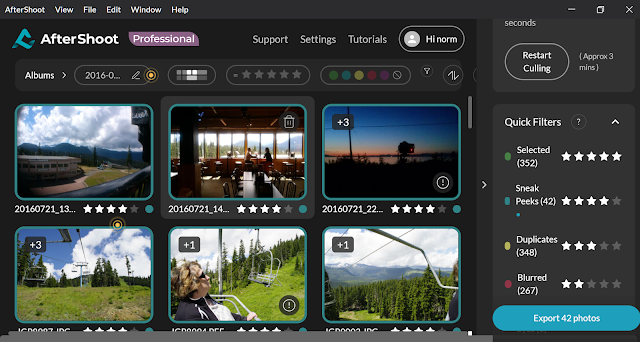
OK could I find and use modern software (specifically AI based system) to help me re-tackle the horrible task of reviewing and further deleting my photos. Seems it could even be an economically attractive option as well if I could get ride of perhaps 40% of my files, that could translate into 3-4 years before I have to outlay on extra disk capacity. Not sure what say two 4-5TB external harddrive (or the equivalent cloud storage) might cost but lets estimate around $150 each or $300 now. If I could find something for $100 that looks economiclly attractive.

What started this was an "offer" for AfterShot at $9.99 ( and thats probably USD$) but in my mind that seemed perfectfor my budget and I download the "free trial". It did a few good things, like  sneak preview grouping that used AI to find those images most like the ones shared on instagram and like services and was very strict with focus, Howeer a lot of its features like eyeclosed andface detect stuff didn't help me a lot also I was getting almost as many possible duplicates as I had photos (ie jpeg & raw pairs were reporting as two duplicates) and in most cases it was flagging the jpeg as the file to keep. Then I realised that the $9.99 was just per month and the discount was jut for a year if you paid up front after that it was $14.99 per month. Buying the extra disk now would be a much better option. I can see a wedding or group photographer is likley to save a lot of time. However what I am looking for is a cheap space creator. 


I do own another programs called  Corel AfterShotPro, which is a light weight RAW Editor I still use it occasionally mainly on my little HP Spectre when away from home. So one aftershot is probably enough. It does allow me to label/keyword, rank, colour code, and flag as Pick or reject but manually not via and automatic AI assisted approach.


Wednesday, May 19, 2021

Not IF but WHEN

Aren't bad things supposed to come in threes? I'm just experiencing fours, in terms of storage.

Digital Storage Media has a Finite Life


First, over a couple of weeks I saw warning from my android phone about occasional difficulty writing to the micro SD card, and then last week a warning to back it up followed by a note that it was unmounted. Fortunately when I took the card out of the phone I could read all its contents BUT I could not write to the card or even reformat it. Ok new card required (they are not all that expensive) and I had been doing monthly updates to my photo library. So nothing lost, at worst it might have been a few recent photos.

SO HAVE YOU BACKED UP THOSE PHOTOS ON YOUR PHONE RECENTLY? NO?

DO IT NOW.

I'm not going to go into detail but there are dozens of ways to get your photos off your phone, into the cloud and/or onto a computer Backup or Archive. Just expect your phone to be stolen, disappear, fall in the water or otherwise stop. If you have anything of personal value on it don't hesitate backup now!

Second was a strange corruption of a file on the memory card in my camera. At first I suspected the little USB card reader (which every now and the refuses to register on the device reading it). However swapping cards showed the problems was just a specific file on one SD card. Or the problem could be in the camera (hope not). Again the bigger faster SD cards I now use are more expensive but replacing it was an obvious tactic. Don't just leave your big SD cards to fill up. You can fit fair number of photos on 64GB and/or 128GB cards but then you loose a lot of photos if something goes wrong.

INGEST THOSE PHOTOS FOR YOUR SD CARD ONTO YOUR COMPUTER OR CLOUD REGULARLY!

DO IT NOW.

Third, I pulled out my backup portable hard drives (I have two set of 1TB & 2TB disks that I alternate one set in my office and one set offsite) in preparation for the monthly update and rotation. Unfortunately the one that was due to take the months incremental files was completed dead, No even a glimmer of life or flicker of the power on light. Again nothing lost, I still had the Master copy on my computer and the off site copy. However now replacement of the hard disk is starting to get expensive.

ARE YOU FOLLOWING THE 3-2-1 BACKUP STRATEGY. DO YOU HAVE AN OFF-SITE BACKUP?

DO IT NOW

The final insult came in the form of a BIOS message as my ailing studio computer attempts to start up. The cost of and capacity of traditional spinning platter magnetic hard disks have improved a lot, prices for the same capacity are significantly lower and the capacity has increased. However now there is the added complication and difficulty of opening up the computer finding the right replacement and the time to restore all the data, programs and get things back to normal. The cost of paying someone else to do this will be frightening.

RESTORING A COMPUTER THAT HAS CRASHED CAN BE A LENGTHY AND TEDIOUS PROCESS. IS YOUR DATA ROUTINELY BACKED UP? DO YOU HAVE A RECOVERY BACKUP?

MAKE THAT RECOVERY BACKUP AND LEARN HOW TO USE IT

Take it from me, these things will happened. 


Saturday, November 24, 2018

Yet another subscription “offer”

It has taken me a little while to get OneDrive setup on my “rebuilt” Window 10 Desktop, and guess what? Yet another advert for a subscription to office 365!

I had previously found the way OneDrive current works, made it suitable for an online archive of my better photos (well until both the computer I had it installed on  effectively died).

image

Of course Not now. Microsoft still allow free OneDrive access and as I have used OneDrive for a long time, rememeber windows Live? so I have 15GB of Storage rather than the 5GB you get if you set up an account now. {thinking to myself I wonder how long free cloud access/storage is going to last}

BTW The photos were always safe in the cloud, it was just complex to access them via the web.


Am I the only one to think the cloud, all these interconnected apps and lots of individual subscriptions are making things more complicated to get even simple task complete.

Tuesday, October 16, 2018

Putting Linux to work on my Air Gapped Archive

PA180239aurYesterday’s realization about Linux, reminded me that I have an older computer dedicated to Linux, the Ubuntu flavour. I only use it occasionally (only 3 times in the last year) and its not connected to the Internet. Its my Air-Gapped Archive. However it is a very important to me. I use this older netbook to handle my photo Archive of original Photographs, including RAW images & photos of my art works.

I choose Linux for a couple of reasons. First the attempts to upgrade my little toshiba netbook to windows 10, initially half worked and progressively slow until an attempted system reset ensured it never worked in Windows again, but I found it worked well with Ubantu . Second Ubantu (and Linux) are Open Source, not propriety operating system so there is less chance of being depricated or abandoned.

I must admit I have only updated twice so far since setting it up and today will be the third update (effectively I’m averaging every 4 months (not 3 months) and that means each year I will be running through the full cycle of Son – Father – Grandfather. This year I’m using a series of Old Hard Disk, which I have reformatted and now I am copying on the complete back up set a fresh (from the external Hard drives (in this case in the red covers). Its not fast, I expect it will take about 3 hours to copy and verify approx. 2.7TB of data.

I have also downloaded a couple of programs to help me out if I end up with only the LINUX access at any time. These are Linux version of XNView MP, a cross platform version of the popular photo/movie viewer and converter, and DarkTable, an excellent open source photo editor, that is also available on several platforms including Linux. Both can handle jpeg and the three RAW format I have .cr2, .pef .orf, I feel happier being able to see my photos. Even though this archive is essentially a digital dataset, seeing it is the best assurance that it is a true archive.

PS I left the complete rebuild run over night and it seems it took closer to 6 hours o copy and verify 2.8GB of photos & videos

Monday, June 04, 2018

Two Weeks On … only one and a half left in the cloud archive race


My photo archiving experiment is really just reduced to microsoft’s OneDrive, which is functioning without any hiccups although I haven’t yet managed to fully automate it, because I don’t want a to create “google style vacuum cleaner suck-in everything” What I am considering building is a synchronization script that takes only the final jpeg version of stared photos and also incorporates the identification (If not removal) of duplicates, copying them into an appropriate OneDrive Directory/Folder on my main Desktop Computer, I expect y=to have to initiate this script/process.  From there OneDrive features take over and do the synch into the cloud completely automatically and in the background (ie no fuss or further actions required)

Photo place holders in OneDrive after the photo is archived to the cloudA niffty feature(aka magic) in the new version on OneDrive (under windows 10) is the free up space option on OneDive directories. At very regular intervals the OneDrive checked and any new files synched to the OneDrive cloud. Any items in a folder or subfolder marked as free up space gets removed and represented by a set of place holders. Just clicking on that icon or filename (givens the message available on line) and can instigate its immediate down load. Its very seamless but does free up the need for a lot of local diskspace. Perhaps it would have be nice to have just thumbnails of photo in the place holder files but hat sort of review/search  can be oust as easily done in the cloud version on OneDrive Photo Archive.

I suggested in last week’s post I was considering Flickr and I have been, and I’m including here because it is free up to 1TB of storage. Which is a lot if you are only storing snapshot sized (4” by 6” or 2400 pixel on the longest side) jpeg images, Which I think would be ideal for a family photo archive. The biggest concern here is privacy.

We don't mine our customers' photos for information to sell to the highest bidder, or to turn into targeted advertising campaigns.

…Don McAskill (Owner Smug Mug)

Smug Mug recently bought Flickr from Oath who bought it from Yahoo.While their photo sharing and storage is not free, but they have been suggesting things at flickr might be much the same in the near future (which seems to include free accounts and the 1TB limit). So I’m encouraged to try out a small scale and very private Family Archive Photo Cloud based on around flickr. I wont be sharing anything here (ie public) other than it has been very easy to step up and use. Also I’m sure that even if I had to move in future to the basic level of Smug Mug subscription USD$3.99 per month (that's the discount if you pay annually, ~$50/year) I might have built a good resource for the wider family that will justify the outlay.

Sunday, May 27, 2018

One week on … How are the Cloud Archives going?

In simple terms my testing of the free generic cloud services as a places to save a copy of an archive photo collection are going well. I have dropped drop box. There is nothing wrong with drop box as a backup system, in fact it is so simple to set up, its drag & drop feature on a PC really nce and sharing photos (privately) across the web it could be a winner for most folk. The limitation I see is it relies on the photos being nicely sorted (say into albums before you upload). If your photo collection is a big mass of stuff all over the place (aka a Mess) the backup will be a mess also.

So Sorry Drop Box your the first elimination.


OneDrive was the real surprise. I must admit I have one drive on a couple of machines (not all) and used it occasionally. Setting up the windows 10 OneDive app and phone apps and rebuilding the local OneDrive folder I saw all the right ingredients to build a rigorous and truly “set and forget” way to synch the photos I wish to upload (not everything vacuum cleaner style). The secret is in using the new format OneDrive folder (in Windows 10) on any of your machines (their doesn’t need to be a master catalogue or piece of software, another nail in your coffin lightroom) You just need to export your finished photos (I’m sticking with jpeg for this test) into the appropriate folder.

image

imageThe One Drive folders are just like of folders in Explorer, with the exception that when you right click the mouse to get a options menu you’ll also see the options that control the display of the status icon beside any file or folder, (these are highlighted with the pink dotted box). The best option for my archive is  free up space which change the icon to an open cloud and  often leaves the files in place for a little while but seems to always upload them (during this process the status icon become an animated pair of arrow spinning and clears the space, then what you see is a thumbnail of the photos or icons of file types. If you want to bring the image back you just click on it and providing you have a web connection it downloads seamlessly. If you always what the local folder synched with a given folder (or file) you can select always keep on this device, and the status icon becomes an infilled green circle with a white tick. Files/photos loaded from other computers sharing the same One Drive will automatically appear this type of folder.

Google Drive (aka Backup and Sync from Google) is a Meehhhh! It worked the first time automatically, just like a vacuum cleaner and hasn’t work automatically since (I can restart it manually, it works once and stops). Not sure if this is yet another Windows 10 upgrade problem but I’ll preservere for the rest of the month and see if I can find the issue. Once uploaded you need to access google photos to see the on-line collection and there are plenty of tools, However it is so mobile phone centric I’m not a fan, even the great snapseed style tools they used to have are missing. I’m not sure what going on in there. Anyway I’ll keep testing.

I’m showing a flickr logo now and while I haven’t actually started using to build an cloud based photo collection archive (I’ll defer that until I understand better what Smug Mug is likely to do with the free !TB storage limits. What flickr offeres is some great and well proven ways to organize and share your on-line photo collection over and above the cloud storage, it could be the real winner of the free social media systems

Thursday, May 17, 2018

Saved by my Air Gapped Archive

I had a perfect storm of issues over the past week. I had the April Update of windows 10 forced on my computer and in the process the Homegroup networking just disappeared along with some of the network drive letter I used to share folders across my local area network. Also the NBN line to the internet (and my phones) dropped out and took many mobile phone calls to report and get re-established. NBN is not a popular word around here. When the internet was back the modem and router began playing up, WiFi dropping out and weird things happened across my network, including my Netgear Stora NAS (Network Attached Storage) which I use for backup/disk mirroring went silent and these was the pain of another few days of reporting problems. Long hours of automated phne system and support calls and just general frustration.  Then horror I noticed all my photos from 2017 & 2014 and most of my 2018 photos had disappeared off my network. Worse my two external portable hard drives, also seem to have lost the same folders. It all happened so fast I knew it could not possible be an accidental deletion and the two external hard drives where not connected to anything at the time. So how could they possibly have lost the data. Time to panic?
My "Air Gapped"Archive (one should be off-site but wasn't)It could have been BUT last year I had set up an “Air Gapped” Archive, on a Linux computer that was not attached to the internet (or my Local area network). My original plan was to rotate these on a three generation Son-Father- Grandfather cycle and store the grandfather off-site. However as I have only been updating the cycle every-six months (my original plan was every three months)using old computer hard drives. I only have two generations and they are both here. So I broke out the father copy and fired up my little Linux machine. It took a while but what a relief all the missing directories and photos where there. Next the son copy, all there as well, actually only up to mid December last year when I did the last archive backup. So I could be missing a few months, bummer! I unplug my archive drive and went and got one of my external backup drive, the one I knew I had used most recently, to my surprise all the missing folders where there and full of my recent photos.
The Backup Twins, The USB Harddrive I use to keep my ew and working files backedupIn disbelief I unplugged it (after a safe to remove step) and took it back to my desktop, no folders again. What is going on? I took the external drive to my laptop also connected to my LAN, the missing folders and photos could not be found. Back to my linux machine and they are there! What a mystery?
Actually I wasn’t so surprised I felt strongly that it was impossible that so many files on different media and places would instantly disappear. However at the moment I don’t understand why this happened. I’m just very glad I put some time into planning an archive system (with backups of the archive).
If you haven’t already got a backup system in place for your growing photo collection go and do it now. Then before to long plan how best to archive the collection!

Wednesday, May 03, 2017

Leaving a Backup Behind

I am very diligent carrying two portable USB (backpack style) hard disks for ensuring I have good backup while I’m on the road. One disk, I’ll call the “son” is used just after I’ve loaded and culled my photos. Once the backup is complete I then have two copies, one on my computer and the other on the backup disk so this is the time I also reformat the SD cards on my camera. I used to let picasa delete photos it loaded, and never had any problem with that process, but occasionally later I get a card not recognized in both of my camera and reformatting in the camera fixed that.

Then after a few days, occasionally up to a week, or if I have taken a lot of photos I may do it daily. I use the other backup, which I called the “father”, to get copies of all new photos (ie an incremental backup since the previous backup). Then put it back in my luggage.

This process has served me well.

I’ve now got a slightly different processes for “archiving” my lightroom work. At the end of the month, or close to it I backup my lightoom catalogue and setting files onto the “son” backup disk, in a directory called lightroom_back. I also move all the previous months photos (ie at the moment that was march) off my HP spectre which only has a 250 GB SSD drive, also onto the son drive. I do this move outside lightroom, despite all the warnings not to more files outside lightroom, 1-Fullscreen capture 8052017 112922 PMbecause it is a lot simpler. Inside lightoom all the photos removed now have the little box and question mark in the top right (hovering the mouse over this shows the warning “Photos is missing”. Now providing I have preserved the directory structure I can relink all the photos in a given day in one process by right clicking on the directory containing the now missing files. Selecting the find missing folder and using the normal browse process to find the location of the directory containing that 1-Fullscreen capture 8052017 113243 PMdays photos on the external drive. The process needs to be repeated for each day but that doesn’t take long.

The final step is this “son” drive retires and become a new “father” and goes back in the luggage. The old “father” gets reborn as the new “son”. I also normally delete the previous lightroom catalogue backup from this disk to avoid confusion and possibility of loading the old catalogue.

This has worked wonderfully for three months now. However when undertaking the reconnection of the files it lightroom I was obviously distracted and didn’t finish. Worst I had unplugged the USB disk but left it on the table in the hotel (it would normally have gone into my luggage) A day or so later and many miles away I realise it was missing and a checked with the hotel confirmed they had found my disk, phew!…. and I can pick it up in a couple weeks as I pass through town again. That’s ok this is off-site backup.

Yesterday morning while having breakfast on the terrace of the apartment I’m staying in now, suddenly fire alarms where going off everywhere. I didn’t panic, I had off-site backup! It was a false alarm anyway, someone might have burnt their toast. Lucky I was carry two backup external drives.

Saturday, April 15, 2017

Why I started using an Air Gapped Archive

I'm not paranoid or afraid of the NSA. I'm just trying to avoid the risk of ransom-ware or the corruption of a disk via a virus, mechanical malfunction or a range of other things that might affect an active network and hard disk always spinning. I realise my approach is somewhat hybrid and would not satisfy Edward Snowden or the security gurus but It does give me confidence that I have addresses the long term safe storage of my source photos.
The Little Netbook that became a Linux archive machineI am using an old Toshiba netbook (it served me well as a photography & email connection to the world as I traveled around Europe in 2011). However it was always slow and it was the first computer I tried to update to windows 10 and basically windows 10 killed it! I ran out of patience and installed Linux, and a little photo software but it sat unused for the past year-ish. Then it struck me this would be ideal for the Air Gapped Archive. I leave it turned off most of the time, turn off the WiFi & Bluetooth and just use it to manage my photo archives on an External Drive. It has 3 USB slots (unfortunately USB 2.0 not 3.0, ie file transfer will be slow) so I can do my transfer of files to the archive on this little Linux computer. I can also preview the files with XnView when necessary
image
The Air Gap isn't perfect because I have to get the photos onto the external hard drive (ie connect it to a network somewhere) and at regular intervals the archive must be updated, again I do this for convenience by creating a new copy of the archive and updating that. This is the Generational approach. The new copy is the SON and this become the new air gapped Archive. The old copy is the FATHER and can be put away till next cycle when It is rewritten as the new SON. In the old TAPE backup days this was often taken to a third GRANDFATHER generation. At present I only have enough spare hard disks to do two generations and I only plan to cycle them over every three months.
I plan to use small memory sticks (only used for that purpose) to extract files if necessary between generation updates and this in theory reduced the likelihood of large scale malware, and particularly ransom-wear but does not avoid it altogether (eg stuxnet). The fact than I'm also crossing operating systems significantly reduces the possibilities of viruses being transmitted.
The Linux computer and the hard drive  containing the Primary Archive are turned off and stored together in my studio rather than my office where the on-line collection of my photos is stored. Hopefully I will only need them every 3 months or so as I cycle and then update my primary archive.


Thursday, April 06, 2017

Making A Hash Of Checksums

I come from a very deep computer background, (I first used computers in 1969) and have managed several mini computers (DG, PDP & VAX) and networks of PC so I am well grounded in the need for both Backup (keep a safe copy) and Archive (long term storage). Now if you read a lot of net advice you might think they are the same and just call that process backup. Backup is important, and a lot of people still don’t do it adequately and I have written a fair bit about it, but archiving seems to have escape my posting attention (other than my The Importance of Cataloging your Digital Photo Archive Post).  I need to rectify that and I will begin with a bit more detail on how I seek to avoid storing, and identifying corrupt file

MD5 checksums (aka hash values)

Utility in Total Commander that creates MD5 Hash Table

With the recent death of two western Digital 2GB external drives, I have become a bit paranoid about the potential for file corruption as a drive slowly fails (One drive just dropped dead the other slowly started to show problems). Because most of the files are in a binary format such corruption can easily go unnoticed and the corrupt file could easily be diligently backed up. There are solutions, like having mirrored drives (extra hardware & software and expense) or regularly reviewing the files (a challenges with lot of photos). I have found a much simpler approach, that is to use Example of the MD5  Hash Valueschecksums created from each file. If the file is corrupted the check sum will change. So each time a file is moved or the disk is rotated these check sums can be checked. I choose MD5 because they are a public format and there are a lot of utilities to create them and they are widely used to detect duplicate files (particularly photos, video & music Files. It would be nice if photo software undertook this task automatically but alas while I can see similar numbers in picasa and lightroom they are not true MD% hash values but just look like them. My only conclusion is they are propriety formats, which creates the risk that if the company disappears (google has already washed its hands of picasa) so does the long term suitability as check sums.  The process to create these files can take some time and I am using Total commander, which creates the check sum for an entire subdirectory (folder) and writes a single .md5 file containing the check sums. This is an ASCII file and can easily be read or a particular Hash value cut and pasted into a Example of  MD5 checking processdifferent utility to verify check sums. They are small and take up negligible space. To verify the checksums also takes a little time because the checking software must read through each file. Good utilities will be able to read the .MDR file and report missing files or errors (ie corrupted files). Total commander has a second utility to do this job. So the final big question is – “how do I know the photos are ok, not corrupted, when I make the MD% hash value?” Simple answer is I can’t be sure so I also have to at least look at the files, using picasa, the default windows photo viewers, Lightroom or Corel Aftershot Pro (which actually seems the fastest option particularly with RAW files). So setting up the checksums for a proper archive does take some time but but I can have more confidence in that archive as it is passed around different media and locations.

Tuesday, November 01, 2016

Storing a Viewer with my off site Archive

imageThe recent hassles with a couple of my hardrive backups has got me thinking again about creating a real long term archive, one that will be useful to someone else. It is a total can of worms because the formats are not all the same, I have mainly jpeg (.jpg) version of most things but I also have original RAW files and some post processed versions as .tiff and occasionally .psd formats. It would be presumptive of me to assume that however gets the drive will know about these formats and have the software to be able to read them (the exception being the jpeg format).

I had contemplated including a downloaded (install/setup) version of adobe bridge for both Window and Mac operating systems. Instead I opted for something that doesn’t require installing and can be just run from the archive disk itself. What I choose was XnViewPortable, one of the portable apps that I have on my travelling DarkRoom USB key. It is the one viewer I have found that handles an amazing number of formats. As well as JPEG it seems to handle most RAW file format including .cr2 .pef & .dng and also handles .tiff and .psd. So all the formats I currently use could be viewed. This program is a single .exe file that can be run on any DOS or microsoft windows operating system. There is also a version called XnViewMP that allow for the other operating systems (eg. Mac & Linux) to view all these formats so I also include the READ.ME file below on the Archive Disk.

--------------------------------------------------------------------------------
This disk contains archived photographs, in a variety of formats.
--------------------------------------------------------------------------------
The subdirectory XnViewProtable contains a viewer program that can be run on any
Microsoft Windows computer. If you want to view the photos on other operating
systems look for the program XnViewMP (the MP stands for multi-platform) on the
internet and download the version for your operating system.
--------------------------------------------------------------------------------

Wednesday, December 30, 2015

The Importance of a Catalogue to your Digital Photo Archive

A shoe box or album full of photos is easy to flick through and you can quick see both its condition and content. Digital files however have limited visibility, especially a collection of digital photos. The Photo file will be in binary and unless you have specific software to decode it it will just be symbols and numbers at best. One exception is the jpeg format which is so widely used that most software, browsers, computer and smart phone apps with recognise and decently render it. Other formats and in particular the camera RAW formats will always require social software (and given that these formats are proprietary and there is a risk of them becoming obsolete) may not be guaranteed to be available on different hardware and/or in the future. Further It is unlikely that scanning the file names from the camera (like IMG_0007.CR2) will be very meaningful. You need a reader that understand the format of that data and can render it as an image. A decent catalogue (or Index) of you photos need both to be able to easily view you photos but it also benefit from some organization that makes the images quicker to find

So how do you figure out what is there. There are two common solution,

  1. The first is Thumbnails, normally postage stamp size low resolution version that give you a peek at what is in the photo.
  2. The second is to use metadata (data about the context of the photo itself).

There are lots of decent (and free or inexpensive thumbnail programs) like Picasa XnView, Photo Mechanics, the default folders view in windows even lets you select a small, medium or Larger icon view, which are thumbnails. Some can handle RAW formats but other may not (or rely on updating a codex for that format). Other software like Aftershoot and OnOne 10 have a browse mode so you don’t have to “import” photos first, you just get presented with a grid of thumbnails. These are fast and a joy to use compared with opening up directories of images in say Lightroom. Having a good thumbnail facility that is fast and easy to use is the first additional need for a good archive.

Metadata, (data about the photo and it’s contents) is a little more complex but it should not be. There are two standards EXIF and IPTC metadata formats. The EXIF data is really mainly about the camera and image and has been well addressed by camera and phone manufacturers (although they may not record all the possible metadata). This EXIF metadata is included with the standard jpeg data format so the metadata travels with the image embedded in it. The IPTC Interchange Model is a way to record information about who created the photo and how it is licenced for distribution and publication (it was set up for exchange of information, and images between newspapers  and is not a big deal in a personal photo archive). This information can be, but seledom is, embedded in jpeg files. Most software that works with photo will let you display both forms of this metadata. If you are having trouble reading the metadata Phil Harvey has written a wonderful open source program called ExifTool, which can interact with metadata in many formats (eg, embedded in the jpeg or stored in an .xmp sidecar file)

Whilst you can see a scratch of water stain on an old photo. It is tricker to judge damage too (corruption of a digital file) because in its raw binary digital format it if not easily comprehended. Even worse even a little damage may render the digital image unusable. There are technique to ensure digital files are not corrupted, most notable the checksums and Hash function (they imageare not hash tags). Of these MD5 is the most used for photos and is usually the technique of choice applied for detecting duplicates. Whilst I can see some software uses checksums (see picasa.ini of right) they do not appear to be MD5 numbers. Adobe use two different IDs which look a little like MD5 hash values, the first is a unique image ID created when The image is scanned by lightroom (or other adobe utilities) and the seconds is an instance ID and is updated whenever the files is accesses and parametrically adjusted (ie the .XMP file and/or catalogue are altered). I can not fnd any definitive documentation on them So I’m just going to assume they are yet another propriety secret and thus I doubt I will research them any further.

Fortunately there are lots of well tried and tested MD5 utility and programs, many free to download. What I discovered is the best way to create these hash table is not one for each file but with one file for each sub-directory. I already had a program called total commander (and alternative to windows explorer) which does this. Further you just need to click on that file and then Total commander will scan the files mentioned and report back if the hash value matches. Yes I did a test truncating a photo and the checked reported a hash value difference. There are a number of utilities so I assume you will have no problems finding a similar one.

I have been using this approach for the past 6 months it very simple and I just create the Hash Table for each directory when I do my monthly backup checks. I have been reprocessing some older directories as I move to a hard disk based archive. Running the hash function did Identified 2 photos that had read problems, luckily I had another copy of those which was fine. I am now slowly adding hash table to all my archived photo folders.

I’m now even more certain you need to also keep a checksum or hash value, as well as an easily accessed thumbnails and standard metadata utilities in addition to your archived files. Copies of the applications used to created these views and information are an important part of your catalogue and should be stored with your archived photos.

Monday, December 28, 2015

Changing the way I backup my archive

This is something that keeps bugging me about ALL photo management systems. There is plenty of discussion about backups but scant regard for archives. A backup is pretty easy to understand and do, it is a second copy. The concept for computer files (or any digital information) being that if something goes wrong, I can just go the backup and recover what was lost or destroyed. This is easy enough to understand for one file, a day or month’s photos but gets a bit trickier as information mounts over a year or more. Do you keep backing up everything or start a new series of backups. For those with decent DSLR cameras with high megapixel counts that means buying new and bigger external USB drive or more racks on a RAID System or Drobo. There are good strategies to safely tame this plethora of images but I need to get back to the difference of true Archives.

An archive, is also likely to be a copy but it has two key differences to a backup. The first and most important is it must provide easy access to find the photo (or digital files). This first requirements means there must be a catalogue or index of how best to find the photo. This requires that the storage be organized in such a way that the important characteristics can be recorded where necessary but also that the storage location is recorded as well. The second difference has to do with the physical format of the storage media, where it is stored and how likely that media is likely to be readable in the future. Is the catalogue always available or is it also buried in the data.

Today I will talk a little about this second issues and keep the idea of an index of catalogue for a number of future posts.IMG_9245 copy copy

I have for several years maintained 3 archives. I have one live on an external harddisk with 2GB capacity, and two CD/DVD collections stored at two different locations (one well off site). Managing and searching in them is starting to become a daunting task (ie locating the right disk and then looking through them takes time, despite being logically labelled and well stored, in suitable storage boxes). Further I’m getting close to that 2GB of photos now. So I have opted to put at least one of the stored archives also on hard disk (or more precisely a couple of hard disks). I do have strong desire not to keep buying bigger and newer gear, so I purchased a small USB hard drive dock (mine is the Shintaro) and it can read both 2.5”and 3.5” SATA HHD drives and also has an e-sata cable. So all I had to do is take the hard drives out of older computers (which I always do before I scrap them) and now I have extra external storage. They are of course slower than a new drive and some of my older drives are smaller 512MB. However Importantly I am not letting my personal and business data get out into the wild (it is well overwritten by photos) and I am also getting a more easily stored medium (a 2.5” 1 TB drive, holding a decade of photos takes up less room than 4 or 5 DVDs roughly a month of my shooting). I did however required two old drives to backup my current archive, but I have several so I might end up using this set this year and cycling over to another pair next year.

Trying to contemplate the best way to do incremental backups (monthly) to a remote disk, has left me sticking with the DVDs as the best option for the time being.

Saturday, December 26, 2015

Searching for a suitable Archive Media

The biggest problem with setting up a long term digital archives related to what physical storage media you plan to use. The Digital world is littered with various storage media that have a very short operation lives and/or have fallen from common usage. I have used Punch paper tape, Punch Card, Reel to Reel Magnetic tape, Various Tape Cartridges, 8”Floppy Disk (yes they were once that big but they could hold around 1.3mb), 5¼” Floppy Disk (only 360kb), 3 ½” Rigid disk (720kb but later 1.4mb), Zip Disks (a glorious 100mb), CDs (compact disks with a capacity of around 700MB) on to DVD (which generally hold 4.7gb) and Blu-ray (which can hold up to 25gb). Unfortunately the unspoken secret here is as the capacity and specifically the information density has increased the shelf life tends to decrease. The punch paper tape for the late 60s is good to go (if only I had a reader) if it hasn’t been torn, so are the punch cards from the early 70s, but everything else has probably reached its best by date and there is a reasonable chance you will experience corruption or errors reading older media already. Even CD and DVDs, once thought invincible start to have troubles after only a few years, even less if they are not handled carefully.

What about solid state memory (like SD memory cards, USB keys or the newer SSD drives), unfortunately they have limited life spans as well (more to do with the number of reads and writes) in normal usage they may outlast the next form of storage HDD. The conventional hard drives (whether built into your computer or as an external USB style) also have some telling untold secrets (see backblaze study), which suggests seagate drives are more likely to fail than western digital, but I have had the opposite experience I have 4 dead western digital my book USB drives but 3 healthy seagate drives, one of which considerably older). Furthyer I have only ever had 1 ( failed under warranty and was replaced) of my 7 toshiba hardisks (some in laptops other are portabale backup style). The caveat here is your spinning disk hard drive will probably last a day or two longer than the guarantee.

So what about cloud storage that’s forever isn’t it? Well if you look in the terms of Service (TOS) offered most cloud service providers there is generally no mention of loss or damage of stored data (I guess they assume you must already have a copy as well, ie from their point of view the data is backed up). Only Amazon seems to have addressed this, and I hope companies like google could be relied upon. However they are companies that are unlikely to last forever. So cloud backup is where we are at now, not cloud archiving yet. So where does that leave us. We will need to plan to regularly move any digital archive onto new media as technology change and popular taste determines.

Clearly an Archive of Digital Photos must not be hardware/media specific.

I trust all this scares you into making a backup of your digital photos right now. Stop reading and go and do it!