Showing posts with label usb. Show all posts

Thursday, March 21, 2024

What is with the cable octopus?


Trying to clean up my desk inevitably runs into the USB cable tangle. Whilst USB A is pretty universal the number and variety of devices it can ad-hoc connect to a computer is amazingly diverse. Sometimes it’s used for charging, most often t will be to transfer data or connect a different peripheral temporarily.  

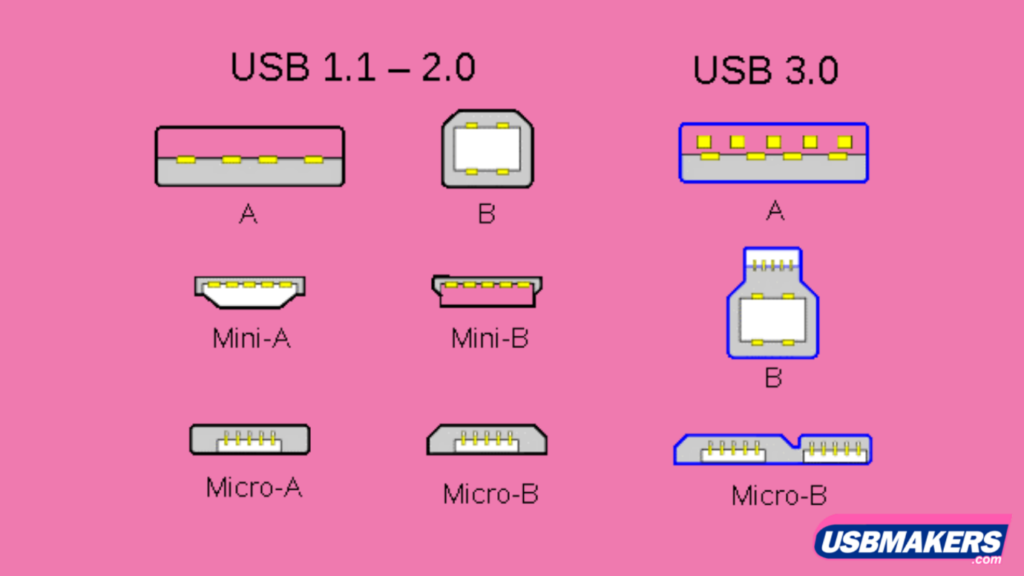
The downside is many use different or non-interchangeable plugs at the other end. Whilst they are all obey the USB standards,  the plugs vary to suit the devices they being connected to. I currently have 5 different device end styles. That’s quiet a tangle on my desk. So I used a spiral cord minder to group the cables together at the USB-A end. A bit of magic using a split tube, lets me keep the cable close to the computer but neatly away from my work area.

This little diagram gives an idea of many of the current plug types, but there are many more including USB-C and a range of proprietary connectors for specific devices eg. cameras, phones and watches.

Iuse pairs of recycled bread-bag ties, that I colour coded to help keep track of which of the ends match up. It nice, simple and neat. Better still no time wasting searching for the right cable.

Wednesday, August 23, 2023

Taming the Cable Chaos: A Creative Solution

If you're anything like me, you've probably experienced the frustration of dealing with a growing mess of cables and chargers around your computers. It's a common struggle in our increasingly connected world, with USB cables and their various iterations being the primary culprits. The sight of tangled wires behind the desk and in drawers is enough to induce a headache. The real challenge arises when you need to reconnect a long-forgotten device or simply ensure that a cable is still functional.

The first step was to prepare these clips for their new purpose. I decided to paint them with fluorescent acrylic paint, opting for different colours based on their designated usage or storage location. My simple colour-coding system instantly gave each cable its own identity.

With the multitude of places where computers are stationed and cables are used, I knew I needed a solution to keep things organized. That's when the idea struck me – why not tag each cable for its specific purpose/place? And so began my journey to conquer the cable chaos.

In the quest for an innovative yet accessible solution, I found an unlikely hero – the plastic clips that come with bread bags and many other grocery items. Instead of letting them go to waste, I started collecting these clips. They had the perfect shape for attaching to cables and were ripe for customization.

USB cables and power cords received their own distinct tags. Even the smaller chargers that always seemed to vanish into the abyss of drawers were not spared. I extended this tagging system to cables I frequently used during travel or those required for specific tasks. This sometimes led to a cable sporting multiple tags, each representing a different context in which it played a role.

No longer did I have to play the guessing game when searching for a particular cable or charger. The colour-coded tags eliminated the frustration of untangling a web of wires. Reconnecting devices I hadn't used in a while became a breeze, and the reassurance of a cable's functionality was just a glance away.

In the end, what started as a simple quest to tackle cable clutter turned into a creative endeavor. Those humble bread bag clips, transformed by a coat of paint, became the guardians of order in my tech realm. So, if you find yourself in a similar cable conundrum, consider giving this colourful solution a try. You might just find yourself appreciating the organized aesthetics as much as the functional benefits.

Monday, May 24, 2021

Not if but when continues.......

I falsely thought equipment failures where behind me, at least for a while. I was wrong. Ok I had been seeing times when my old portable USB card reader (hanging together with masking tape) would just refuse to read cards on different computers. Frustrating sure but it was intermittent and there where alternate ways to upload photo.


Now I find all my built in SD card readers on the three computers (that survived the windows 10 update) still working have stopped working over the past few days. Damn. Still I can upload directly from the Camera.

Clearly I spoke to soon. Is this bad luck and a massive coincident or is there a  SD card virus or similar data contagion out in the wild? I can't find any reliable reference to such a beast, at least at the moment.

So its off to replace my USB card reader and get some new cards, but keeping my fingers crossed.

Wednesday, May 03, 2017

Leaving a Backup Behind

I am very diligent carrying two portable USB (backpack style) hard disks for ensuring I have good backup while I’m on the road. One disk, I’ll call the “son” is used just after I’ve loaded and culled my photos. Once the backup is complete I then have two copies, one on my computer and the other on the backup disk so this is the time I also reformat the SD cards on my camera. I used to let picasa delete photos it loaded, and never had any problem with that process, but occasionally later I get a card not recognized in both of my camera and reformatting in the camera fixed that.

Then after a few days, occasionally up to a week, or if I have taken a lot of photos I may do it daily. I use the other backup, which I called the “father”, to get copies of all new photos (ie an incremental backup since the previous backup). Then put it back in my luggage.

This process has served me well.

I’ve now got a slightly different processes for “archiving” my lightroom work. At the end of the month, or close to it I backup my lightoom catalogue and setting files onto the “son” backup disk, in a directory called lightroom_back. I also move all the previous months photos (ie at the moment that was march) off my HP spectre which only has a 250 GB SSD drive, also onto the son drive. I do this move outside lightroom, despite all the warnings not to more files outside lightroom, 1-Fullscreen capture 8052017 112922 PMbecause it is a lot simpler. Inside lightoom all the photos removed now have the little box and question mark in the top right (hovering the mouse over this shows the warning “Photos is missing”. Now providing I have preserved the directory structure I can relink all the photos in a given day in one process by right clicking on the directory containing the now missing files. Selecting the find missing folder and using the normal browse process to find the location of the directory containing that 1-Fullscreen capture 8052017 113243 PMdays photos on the external drive. The process needs to be repeated for each day but that doesn’t take long.

The final step is this “son” drive retires and become a new “father” and goes back in the luggage. The old “father” gets reborn as the new “son”. I also normally delete the previous lightroom catalogue backup from this disk to avoid confusion and possibility of loading the old catalogue.

This has worked wonderfully for three months now. However when undertaking the reconnection of the files it lightroom I was obviously distracted and didn’t finish. Worst I had unplugged the USB disk but left it on the table in the hotel (it would normally have gone into my luggage) A day or so later and many miles away I realise it was missing and a checked with the hotel confirmed they had found my disk, phew!…. and I can pick it up in a couple weeks as I pass through town again. That’s ok this is off-site backup.

Yesterday morning while having breakfast on the terrace of the apartment I’m staying in now, suddenly fire alarms where going off everywhere. I didn’t panic, I had off-site backup! It was a false alarm anyway, someone might have burnt their toast. Lucky I was carry two backup external drives.

Thursday, September 15, 2016

A nifty way to store cables

The USB interface has revolutionised the way and number of devices you can connect to your computer (and android phones, cameras and widows computer, Simple Cable Box for under $2the apple-verse is catching up but they have an even more complex range of cables to manage). The downside is all those cables, lots of similar ones.  Storing them often lead to jumbled mess of cables and it often took time to find the end you needed.


Whilst buying some hardware supplies I chance upon some cheap plastic storage boxes (under $2 each), with removable sliders. I originally visualised them storing longer screws and or bolts. However, when I put it on the side table beside the cables the electric globe of inspiration came on. Now I have my cables back in my desk draw but now I can quickly find the cable I need and don’t have to untangle anything. Also I have an extra SD card reader in the box as well as another one in my camera bag.

Friday, May 31, 2013

Reassigning a drive letter

For the past couple of months I have been using two 1.5 terabyte USB drives, that contain my photo library, one is the master the other is a backup. I just keep the active months photos on my computer hard drive but the full photo library on theses external drives and carry them between computers when working on or searching for older photos. All was going well until somehow the drive letters became exchanged. Lightroom started to do weird things, which looked like my photos where being deleted, other times it appeared to be duplicating some photos. Picasa just ignore files even when they where present. Eventually I twigged it was a problem with the drive letters being allocated. I suspect it was a couple of background synching utilities, I am experimenting with that where creating the duplicate files and it was probably moving the USB drive between computer that created the drive letter changes in the first place. How then to get out of this mess?

image

Its easy just reassigned the drive letters, the steps are straight forward, on a windows machine you need to find Computer Management Utility, which is under control panel/[system and security]/Administrative Tools. Once in that window select Disk Management, and wait for it to find what's on your system then select the USB drive and right click to bring up the Change Drive Letter and Path Dialogue (shown above). imageClick change and set the letter you wish. Remember some drive letters may not be available as other devices are already using them. When you click ok you will be warned some programs rely on a specific drive letter to run correct. Thanks I understand that now, but that message would have been nicer a lot sooner!

Tuesday, April 09, 2013

Taming the Tangle

One issue that has bugged me for a long while is the tangle of cables and cords, in my computer Common styles of USB connectorsand camera bags. Preparing the photo to illustrate my previous blog post highlighted just how many USB cables I depend on, and that doesn't include power transformers and battery chargers! So here are few interim suggestions.


Reducing the number of cables

This is a lot easier said than done. However there are only limited number of styles of USB cables. Instead of carrying three or four that are identical, you should carry only one (or two). Also carry the shortest version when there are multiple cables. When it comes to battery charger and power packs they are probably all different My three camera battery chargers can share just one short power leadsize and not interchangeable, but the power cords to them may be shareable. They are unlikely to all be needed at the same time. Typically in Australia they are either 2 or 3 pins and one cable might connect to several. Between my wife and I we need to carry three different battery charges when travelling but they fortunately they all share the same two pin power connection so I only need to carry one extra short power cable.

Where a device can be charged via a USB connection, you will save having to carry yet another transformer, and either charge it off your computer of carry a small USB charging adaptor.

Some duplication may be desirable. There is nothing worse than not being able to charge your phone or connect your camera because the cable is playing up. I found a great universal USB cable set, which was inexpensive and has several "heads" that fit an longer USB extension cable. I pack this in my luggage rather than take up space in my camera bag. I also carry a second inexpensive USB charging plug here.


Staying tangle free

Having your cable in a scrunched up mess is courting disaster, not to mention a lot of time spent untangling. Whilst there are a number of clever cable windup gadgets around, I have found, from bitter experience, that the smaller spring loaded ones are more likely to damage the cable or make its performance flaky. My cables are stored in a mesh zip bag and cloth pocketsThis is because most data cables now are complex in their inner design with fine web shielding etc, small or tight kinks will cause stretched connections or broken strands. It is the end connectors that at particularly venerable to coming loose or breaking off when cable is tightly bent at the junction.

I find winding the cables as open loops  that suit their natural flexure, thinner cables can be kept in smaller loops. Then storing these in cloth pockets or mesh zip bags (as in my photo) really helps keep things organized as well as avoiding damage.